
The course has fourteen modules. Modules 0 to 12 build on each other, and module 13 holds the course’s bonuses. Here is the whole path in one place, so you always know where you are.
The Modules
- Module 0: Course Introduction. We set up what the course needs and meet Repair Desk, the application we work on.
- Module 1: Getting Started With Claude Code. We see what Claude Code is and how it compares with other AI tools. Then we install it, sign in, and make our first change to Repair Desk, a health endpoint with a test.
- Module 2: How Claude Code Works. We look at how the agent gathers context, acts and verifies, and at what a session’s memory really holds.
- Module 3: Models, Effort and Usage Limits. We choose models and effort levels, and we learn what the usage limits mean in practice.
- Module 4: Building a Feature With a Plan. We build a complete feature, with a database migration, across three projects.
- Module 5:
CLAUDE.mdand Auto Memory. We write the instructions the agent reads before every session, theCLAUDE.mdfile, and we make sure it follows them. We also read the notes it keeps for itself. - Module 6: Permission Rules and the Sandbox. We set permissions, so the agent can run the .NET tools it needs and nothing it should not, and we see what the sandbox adds.
- Module 7: Verifying With Builds and Tests. We set up verification we can trust: warnings as errors, tests the agent must run, and evidence we can check.
- Module 8: Refactoring, Migrations and Diffs. We refactor the legacy Billing project without breaking it, add and review a database migration, and read a diff before we accept it.
- Module 9: Git, Pull Requests and Code Review. We commit with the agent, open and review pull requests, and run two sessions side by side.
- Module 10: Troubleshooting and Staying Current. We diagnose a broken setup from its symptoms: a wrong version, a stray key, a session that will not start. Then we learn to keep up with Claude Code’s changes.
- Module 11: Advanced Claude Code Concepts. We watch skills, Model Context Protocol (MCP) servers, subagents and agent teams at work on Repair Desk, and we see when each one helps. You read and watch this module, and you change no code.
- Module 12: Final Project and Next Steps. We ship one feature end to end, on our own, and we take the final quiz. Then we meet hooks, the first topic of the next course.
- Module 13: Bonuses. The course ends with three bonuses that come with it: our Claude Code cheat sheet, a prompt library and a list of Claude Code skills.
In the early modules, we show you everything and you follow along. From the middle of the course on, we hand you more of the work, and by module 12 you do all of it yourself.
Every module from 2 to 12 starts in a fresh copy of the previous module’s checkpoint, as lesson 0.3 showed, so your code matches the page when a module begins.
Module 11 is the exception. It changes no code, so you copy nothing for it, and module 12 starts from the module 10 checkpoint.
Prompts and Outputs
Whenever we ask Claude Code to do something, we show you the exact text we typed, in a box labeled Prompt. Right below it, in a box labeled Claude Code, we show what the agent did on our machine.
Here is the prompt from lesson 1.4, where we add our first endpoint:
Add a GET /health endpoint to src/RepairDesk.Api/Program.cs that returns 200 with the JSON body {"status":"ok"}. Add one integration test for it in tests/RepairDesk.IntegrationTests/ApiTests.cs, in the same shape as the tests already there. Then run dotnet build and dotnet test and tell me what they printed.
And here is the end of the output we got, the agent’s own summary. We cut the tool calls above it, and lesson 1.4 shows the whole answer:
● I did the job. It worked.

  What I did:
  1. I added a /health page to the API. It sends back
     {"status":"ok"}.
  2. I added one test for it in ApiTests.cs.

  Build result: Good. 0 errors, 0 warnings.

  Test result: Good. All tests passed.
  - Unit tests: 3 passed.
  - Integration tests: 5 passed (4 old ones + 1 new health test).

  What you do now: Nothing. It is done and working.
The output looks the way your terminal prints it. A dot starts every message from the agent and every action it takes.
An action names the tool and what it used it on, such as Edit(src\RepairDesk.Api\Program.cs) or Bash(dotnet build), and reads and searches show as a short summary line, such as Searched for 1 pattern.
Long lines wrap where the terminal wraps them, and tables are drawn with lines. We shorten long answers, and the text says when we do, but we never change a word of what is left.
One thing will look different on your screen.
When the agent runs dotnet build or dotnet test, its transcript shows the older, longer output, with lines such as Build succeeded. followed by warning and error counts. Your own terminal prints a shorter form: one line per project, and a one-line summary.
The reason is that Claude Code runs commands without a terminal window, and the .NET SDK prints differently there. The results are the same. Wherever this course shows output you typed yourself, it shows the form your terminal prints.
When you run the same prompt, you will get a different answer. It may read different files, in a different order, and phrase things differently. That is how an agent works, and it is not a problem.
What matters is what it changed and whether the build and the tests pass afterwards.
Tabs for Windows, macOS and Linux
Most commands we use are the same on every system, such as dotnet build. When a command differs, we give it two tabs in one box, and you pick the one for your system:
- Windows (PowerShell) is for the PowerShell that comes with Windows. We use it for every Windows command in the course.
- macOS and Linux (bash) is for the terminal on a Mac or a Linux machine. If you work in Git Bash on Windows, this tab works there too.
Click a tab to switch, and the Copy button copies the tab you see. You have met two of these already, in lessons 0.2 and 0.3. Here is the one that starts module 2, and you run it then, not now:
Copy-Item -Recurse source\module-01-complete module-02
cp -r source/module-01-complete module-02
The two tabs do the same thing, each in the words its shell understands.
How We Recorded the Runs
Every output in this course is a real run on our machine. We recorded each run the same way, so we know the exact setup behind every answer.
Nearly every run is a headless run. That is one command, claude -p with our prompt after it. It works until it is done, prints its answer and exits.
Where a run needed an open session, its lesson says so, as lessons 4.2, 8.6 and 11.4 do. Each headless run worked in a copy of the checkpoint, and we allowed the dotnet build and test commands up front, on the same command line.
You work in an open session, so three things on the page differ from what you see:
- Our agent never stopped to ask us before a build or a test. Yours may ask the first time, depending on the mode your session is in. Say yes, and module 6 writes the rules that make the question go away.
- A headless run cannot show a menu. Where your session offers a list of choices, or asks you to approve a plan, ours asked us in plain text. A few of its replies even say so, in lines such as “No question tool here”. Your session shows the menu instead.
- Commands that open a screen of their own, such as
/permissionsand/sandbox, print nothing in a headless run. Where a lesson needs one, we ran it in an open session: lesson 6.2 shows screenshots of/permissions, and lesson 6.4 quotes what/sandboxprinted on our Windows machine.
That command line set a few more things. Unless a lesson says otherwise, a run was in the Accept edits mode from lesson 1.6, so it edited files without asking. It also stopped after at most 40 turns.
Most runs used the Sonnet model at medium effort, and a lesson names the model and the effort whenever a run used others. Since v2.1.280, a new session starts on Opus 5.5, the default model, so your answers come from a different model than most of ours.
Lesson 1.4 shows how to start a session on Sonnet at medium effort, if you want to match our runs.
Skills and slash commands were off, except in the six runs in lessons 9.3, 9.5 and 10.2 that need one, and in lesson 11.1, which shows a skill at work.
And every run loaded our own user-level CLAUDE.md file and our auto memory, as any session on our machine does. Module 5 explains both, and your sessions load your own.
The same setup explains two smaller things. Our runs worked in copies of the checkpoints. Where a transcript prints a path, we show it as the module folder in the course folder from lesson 0.3, for example C:\course\module-07.
And a few runs say they could not check with git, because our copy was not a repository. Until lesson 4.5, your module folder is not one either.
Code Marked as Wrong
Most code blocks in the course are code that ends up in the solution, and you can copy them.
A few blocks show code that is deliberately wrong, so you can see what a problem looks like. Those are marked, and the text says so. Do not copy them into your project.
Interactive Tools
Some of our lessons hold a small interactive page. These pages call no model and run no code. They replay what happened in our runs, so we can follow them step by step. We use two kinds.
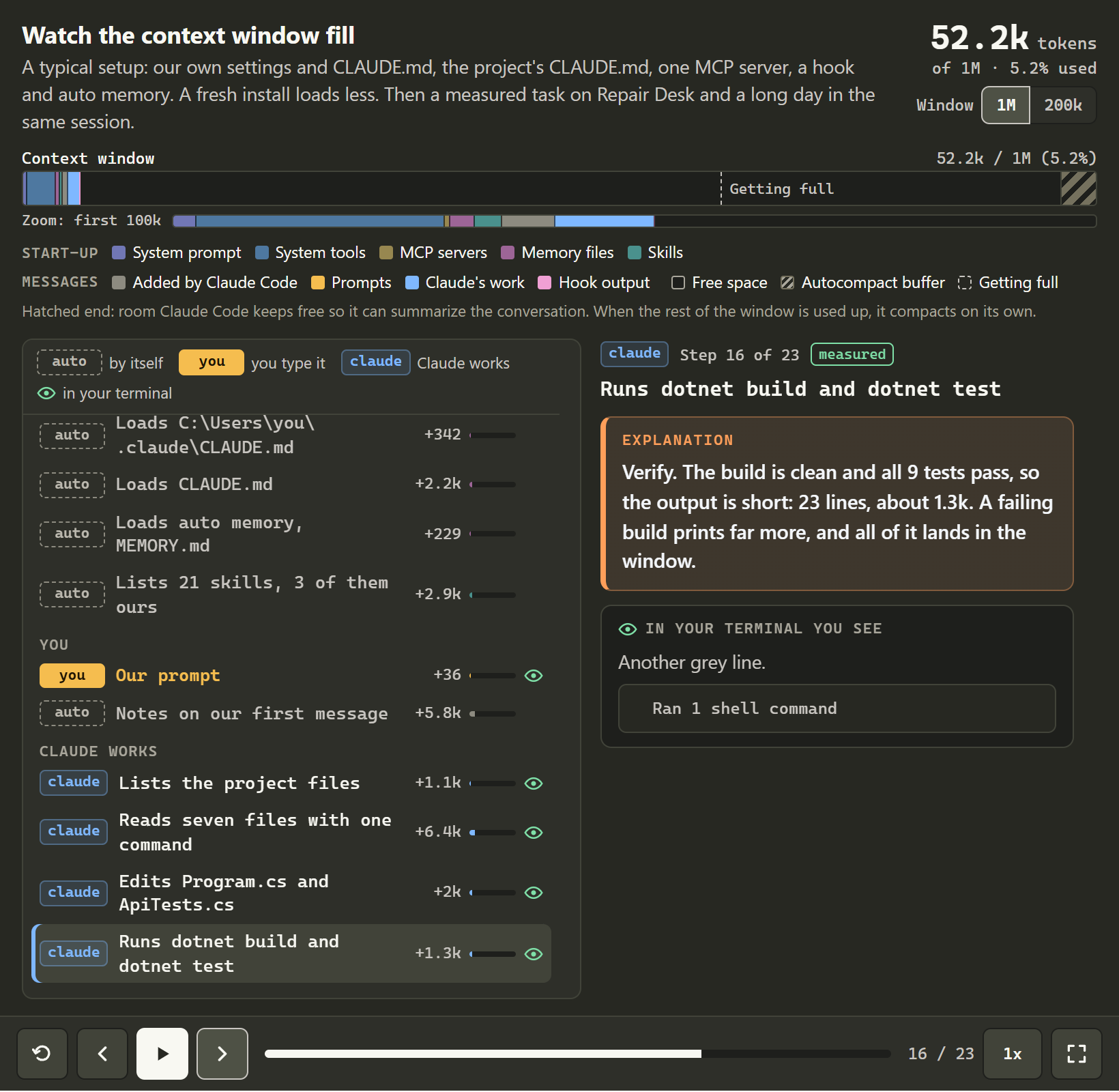
The first is our context player. It replays one of our Claude Code sessions a step at a time, and a bar fills as the session goes on. Each step says what it added and why.
We press Play to watch it run, or step forward and back with the buttons under it. We meet the first player in lesson 2.2, where we explain what the bar measures, and we come back to it in modules 3, 4, 5, 8 and 11.
The second is a duel between Dev and Angy. Dev is the devil on the left and Angy is the angel on the right, and they give us opposite advice.
We read the situation, then pick the one we think is right. The page shows who was right and why. In most duels, a second situation follows and we pick again, because the right advice changes with the task.
Each duel ends with a one-line takeaway. Our first duel is in lesson 2.3, and the course has nine.
Exercises
From module 4 to module 12, every module except module 11 ends with an exercise. You build a small feature of your own, loaner bikes, next to the lesson code.
The lessons show you how to do something with Claude Code, and the exercise asks you to do the same thing on your own feature. The exercises get harder as the course goes on, and the last ones give you only the goal.
If you skip one, or yours did not work out, you lose nothing. Every exercise starts from a folder in the source code. Each module’s exercise checkpoint holds our solution, so you can compare yours with it, or move on.
Quizzes
Modules 1 to 11 end with a short quiz of five questions, and module 12 ends with a final quiz of ten. They are not exams.
You can take them as many times as you like, and each wrong answer explains why it is wrong. Use them to check that the ideas stuck before you move on.
You now know how to read every box in this course: our prompts, our outputs, and the tabs. The one new term in this lesson is headless run. In the next lesson, we look at how the course keeps up with Claude Code, which changes every week.