
So far we have typed one prompt and read one answer. In this lesson, we slow down and look at the screen itself. It tells you more than the answer does. It shows which model and plan you are on, what the agent looked at, and what it may do without asking.
The Parts of the Screen
This is a real session in our module-01 folder, captured on Claude Code v2.1.289. We asked one question about the health endpoint from lesson 1.4 and told the agent not to change anything. The numbers mark the six parts you will read most often:
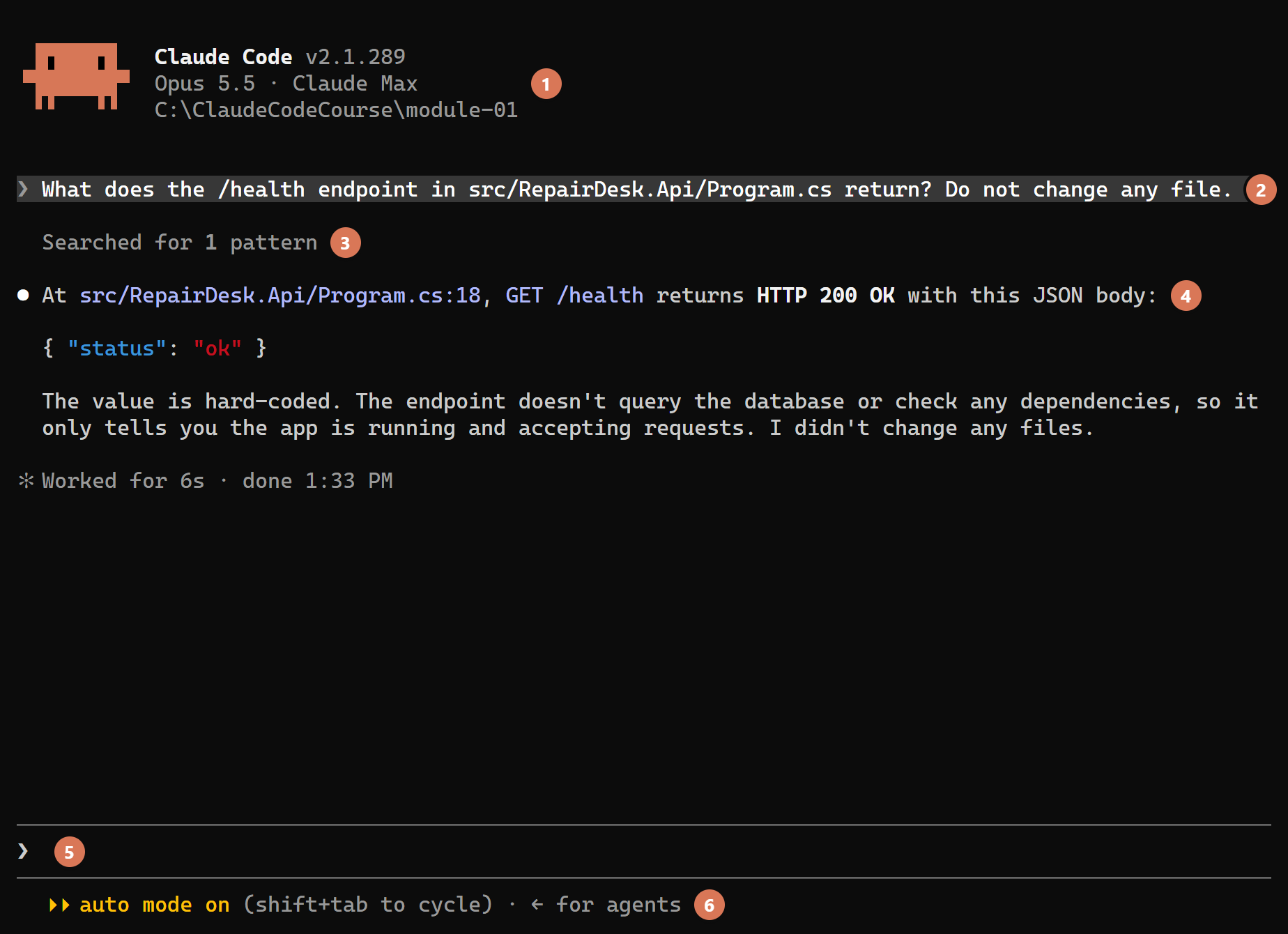
- Header: the Claude Code version, the model and your plan, and the folder the session works in. The plan name tells you the session runs on your subscription, the check from lesson 1.3. Yours shows a newer version.
- Your prompt: every prompt you send stays in the history on a grey band, so you can scroll back and see exactly what you asked.
- Tool call: before it answered, the agent searched the code once. The screen shows that as one grey line,
Searched for 1 pattern. The next section shows how to see that call in full. - Reply: the agent’s answer starts with a dot. Here it names the file and the line number, and it says it changed nothing.
- Prompt bar: where you type. Three characters change what a line typed here does, and we cover them below. After a reply, Claude Code may also show a suggested next prompt here in grey. Tab or the right arrow puts it in the bar, and typing anything else dismisses it. We switched suggestions off for this picture, so our bar is empty.
- Mode line: the mode the session runs in, here auto mode, and the key that changes it. The mode decides what the agent may do without asking you. Lesson 1.6 goes through every mode.
Two smaller things are worth knowing too. Under the header, Claude Code sometimes shows a notice, such as a tip about the model. Ours had none this time, and you can ignore one when it appears.
Under the reply, Worked for 6s says how long the turn took. The verb changes from turn to turn (we have also seen Baked, Churned and Cogitated) and means nothing. The time is the useful part.
Seeing Every Tool Call
The agent works through tools. It reads files, searches the code, edits files and runs commands, and each use of a tool is a tool call.
To keep the screen short, Claude Code folds reads, searches and shell commands into one grey summary line, such as Searched for 1 pattern or Searched for 1 pattern, read 2 files, ran 1 shell command.
An edit keeps a line of its own, ● Update(path), with the file it changed. The summary tells you that the agent looked, but not where.
Some accounts get the classic view instead. It prints a shell command such as dotnet build on its own ● Bash(...) or ● PowerShell(...) line, outside the grey summary. The command /tui default switches to the classic view, and /tui fullscreen switches back.
Press Ctrl+O to open the transcript viewer. It shows every tool call of the session in full: the pattern a search used, the files a read opened, and what came back. Each reply also carries a timestamp and the model name. Press Ctrl+O again, or Esc, to return to the prompt.
Open it when an answer looks wrong. An agent that searched in the wrong place sounds as sure of itself as one that searched in the right place, and the transcript shows you where it looked. That usually explains the mistake, and the end of this lesson has an example.
Prompt Shortcuts
Most of what you type at the prompt bar is plain text for the agent. Three characters change that:
/at the start opens the command menu, the list of commands this session offers. You have met four already:/loginand/statusin lesson 1.3,/modeland/effortin lesson 1.4. Keep typing to filter the list. It is the quickest way to find a command when you remember what it does but not its name.@followed by a path attaches a file.@src/RepairDesk.Api/Program.csputs the whole file into the conversation together with your prompt. The agent starts from the real code and does not have to search for it, as it did in the screenshot. Claude Code suggests paths as you type.!at the start runs a shell command yourself, for example! dotnet test. The output goes into the session and the agent answers it, so a failing test run gets an explanation without a second prompt. Use it when you know the exact command and do not need the agent to pick one.
Adding a Status Line
The header names the model and the folder once, at the top, and it scrolls away as the session grows. A status line keeps that information on screen for the whole session, together with the git branch and how full the context is.
The context is everything the model sees when it answers: our conversation and every file the agent has read, up to a fixed size. Claude Code runs the script, hands it the session data, and prints what it writes.
The quickest way to get one is to ask for it.
/statusline followed by what you want shown, such as /statusline show the model and the context percentage, makes Claude Code write a script for you in your user folder (~/.claude) and switch it on for every project.
We use a script inside the solution instead, so every checkpoint carries it and your screen matches ours.
Ours is a PowerShell script in the .claude folder of the solution. Create that folder in module-01 and copy the script into it from the module-01-complete folder of the source code, or type it:
# Claude Code reads this script's stdout and prints it under the prompt bar.
# The session data arrives on stdin as JSON, and the fields are documented at
# https://code.claude.com/docs/en/statusline under "Available data".
$session = $input | Out-String | ConvertFrom-Json

$folder = Split-Path $session.workspace.current_dir -Leaf
$model = $session.model.display_name
$percent = $session.context_window.used_percentage
if ($null -eq $percent) { $percent = 0 }

# Git ships no field of its own, so we ask git itself, in the session's folder.
# Get-Command first, because a machine without git would print an error here.
$branch = if (Get-Command git -ErrorAction SilentlyContinue) {
    git -C $session.workspace.current_dir branch --show-current 2>$null
}
if (-not $branch) { $branch = "no branch" }

Write-Host "$folder [$branch] $model ctx $([int]$percent)%"
Claude Code sends the session data to the script as JSON on standard input. The script reads three fields from it, asks git for the current branch, and prints one line. In a folder that is not a git repository, or on a machine without git, the branch reads no branch and nothing else changes.
The checkpoint also holds statusline.sh, the same script for Git Bash, macOS and Linux. On macOS or Linux, also add .claude/statusline.sh to your folder, copied from the same place.
To tell Claude Code to run the script, we add a statusLine entry to .claude/settings.json. That file gets one more entry in lesson 1.6, so we show it there, in full.
Until then, we can try the script without a session. We kept a small sample of the JSON that Claude Code sends. Copy it next to the script:
{
  "model": { "display_name": "Opus 5.5" },
  "workspace": { "current_dir": "." },
  "context_window": { "used_percentage": 12.4 }
}
Now send the sample through the script, the way Claude Code will. The | hands the file’s text to the script as its input. From your module-01 folder, run the command for your system:
cat .claude/statusline-sample.json | powershell -NoProfile -ExecutionPolicy Bypass -File .claude/statusline.ps1
cat .claude/statusline-sample.json | bash .claude/statusline.sh
Windows PowerShell, as Windows ships it, refuses to run any script file, with the message “running scripts is disabled on this system”. The -ExecutionPolicy Bypass lifts that for this one command and changes no setting on your machine.
The settings entry in lesson 1.6 carries it too. Both commands print the same line:
module-01 [no branch] Opus 5.5 ctx 12%
The folder comes first, then the branch in brackets, the model, and after ctx the share of the context in use. The branch reads no branch because module-01 is not a git repository.
Once the settings entry is in place, this line sits at the bottom of the screen for the whole session.
Mapping the Solution
Now let’s ask the agent something bigger: a description of the whole solution.
Start a session in module-01 if you closed the one from lesson 1.4. This is a good first question for any codebase you do not know, and a good exercise in checking an answer. This is what we typed:
Map this solution for me. For each project, give one line on what it holds and which projects it references. Then tell me which project I would change to add a new endpoint.
The answer came back as a table. In a terminal as narrow as this page, Claude Code prints each row of a wide table as a block of its own, so that is how it looks here. We cut two of its five rows to save space:
● I will look for the .NET solution now, then map it.

  Searched for 3 patterns, read 3 files

● There is no .sln file. I found 5 projects in src and tests.

  Projects

  Project: src/RepairDesk.Data
  What it holds: Database entities, RepairDeskContext (EF Core),
  and seed data.
  References: Nothing
  ────────────────────────────────────────
  Project: src/RepairDesk.Api
  What it holds: Main web API. It uses minimal APIs (routes written
  in Program.cs, no controllers). Routes: /health, /customers,
  /jobs.
  References: Data
  ────────────────────────────────────────
  Project: tests/RepairDesk.IntegrationTests
  What it holds: Tests that call the API over HTTP.
  References: Api

  Api and Billing do not reference each other. Both use the same
  SQLite file through Data.

  Which project to change for a new endpoint

  Change src/RepairDesk.Api. Add your route in
  src/RepairDesk.Api/Program.cs.
Read the answer next to the folder, claim by claim. Ours got the table right: every project and every reference in it is correct. Its first sentence is wrong. There is a solution file, RepairDesk.slnx, sitting in the folder the agent searched.
The grey line Searched for 3 patterns, read 3 files does not say where it looked. Ctrl+O shows why it missed the file: its first call is Search(pattern: "**/*.sln"), and no search looked for the newer .slnx format. That is how you would spot this in your own session.
Your answer may find the file first time. What should match is the rest: five projects, each with its references, and RepairDesk.Api as the place for a new endpoint.
An answer from an agent is a claim about your code, made after reading some of it. A claim made after a narrow search sounds as confident as one made after a wide one.
So we check each claim against the folder. When one looks wrong, we do not argue. We point at the file:
RepairDesk.slnx in the root is the solution file. Read it and tell me whether it lists exactly the five projects you named.
The agent read the file and answered:
  Read 1 file

● Yes. RepairDesk.slnx lists exactly the five projects I named. It
  lists no others.

  My first search only looked for *.sln. It did not look for
  .slnx, which is the newer solution format. That is why I said
  there was no solution file. I was wrong. The file exists.
One read settled it. Keep the habit even when the first answer looks right: read an agent’s answer next to the code it describes, and when the two disagree, hand it the file.
Where We Are
Two files are new, both in the .claude folder: statusline.ps1 and statusline-sample.json. The checkpoint also carries statusline.sh for the other shells, which you copied too on macOS or Linux. No C# changed, so the build and the tests are the same as after lesson 1.4.
In the next lesson, we look at permission modes, which decide what the agent may do without asking.