
Now that Claude Code is installed, let’s sign in. This is a short lesson, but please read it to the end. Its second half covers a problem that bills the wrong account and looks like a broken plan.
Starting a Session and Signing In
Claude Code always works inside a folder, so we start it where we want to work. For this module, that is your module-01 folder. Open a terminal there and run claude.
The first time, a short setup wizard runs before any prompt appears. It asks a few questions, one screen at a time, and you answer with the arrow keys and Enter:
- Text style: pick the one that looks right in your terminal. You can change it later.
- Login method: choose the Claude account with subscription, not the Console account. The Console account is for people who pay per request with an API (application programming interface) key, and the next section explains why you do not want that here.
- Browser: Claude Code opens it. Sign in with the account that holds your plan and come back to the terminal. If the browser does not open, press
cto copy the link and paste it into the browser yourself. If the browser shows a code instead of sending you back, paste that code into the terminal where it saysPaste code here if prompted. - Trust: whether you trust the files in this folder. Say yes for
module-01. A folder can bring settings that run commands, such as the small script we add in lessons 1.5 and 1.6, so Claude Code asks before it uses them. It asks once per folder, and each new module folder asks again.
This is the second screen, where you pick the login method. Choose the first option. The version at the top is hidden in the picture, because yours will be newer:
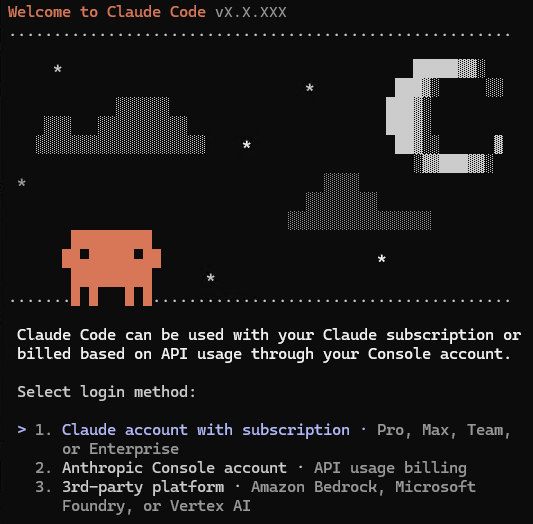
The wizard may add one or two small questions about your terminal. The defaults are fine. Then the prompt appears, and the session waits for input.
We could not record those screens, because the wizard needs somebody at the keyboard, and this course does not draw a screen it has not seen.
Two commands inside a session are worth knowing for later:
/loginruns the browser sign-in again. Use it to switch to another account, or when a session tells you that your login has expired./statusshows the version, the model, the account and the sign-in the session is using. Use it when you are not sure which account a session runs on.
The Stray API Key
Claude Code can also sign in with an API key, and this is where the problem is.
If an environment variable called ANTHROPIC_API_KEY exists in your shell, Claude Code uses it. On a first sign-in it asks you once whether to use that key instead of the browser.
After that, your sessions run on the key, and it is billed to whoever owns the key, not to your plan. We call this the API key override.
Nothing warns you while you work. The one sign is in the first lines of every session: they name the model and your plan, for example Opus 5.5 · Claude Max. If they do not name your plan, the session is not using it.
Where does such a variable come from? Usually from an old experiment, a script, or a former employer. It sits in a shell profile for months, until Claude Code finds it.
The symptom looks like a billing problem with your own account. Claude Code answers with API Error: 400 ... "This organization has been disabled", while your plan is active and paid. The disabled organization is the one behind the key, not yours.
Removing the Key
Let’s first remove the variable from the terminal we are in. Run the command for your shell. Git Bash on Windows takes the bash one:
Remove-Item Env:ANTHROPIC_API_KEY
unset ANTHROPIC_API_KEY
Either one clears the current terminal and nothing more.
On most machines the variable does not exist, and then PowerShell answers in red with Cannot find path 'Env:\ANTHROPIC_API_KEY' because it does not exist. That error is the good outcome: there was no key to remove. unset prints nothing either way.
For a permanent fix on Windows, open your PowerShell profile (its path is in $PROFILE) and your user environment variables, and delete the assignment from whichever one holds it. On macOS and Linux, look in ~/.zshrc, ~/.bashrc or ~/.profile.
Checking Your Account
To see which account and which sign-in Claude Code uses, run claude auth status in any folder, outside a session. It prints a small JSON (JavaScript Object Notation) object describing the account. These are the three lines that matter. We cut the rest, because it names our own account:
"authMethod": "claude.ai",
"apiProvider": "firstParty",
"subscriptionType": "max"
claude.ai and firstParty together mean the session is using the plan on our account, not a key. The third line names the plan. If you ever see an API key here that you did not expect, you know what to do.
That is all there is to signing in. In the next lesson, we make our first change to Repair Desk.